From one sentence to a booking website
 The Aglyn Team · Oct 2026
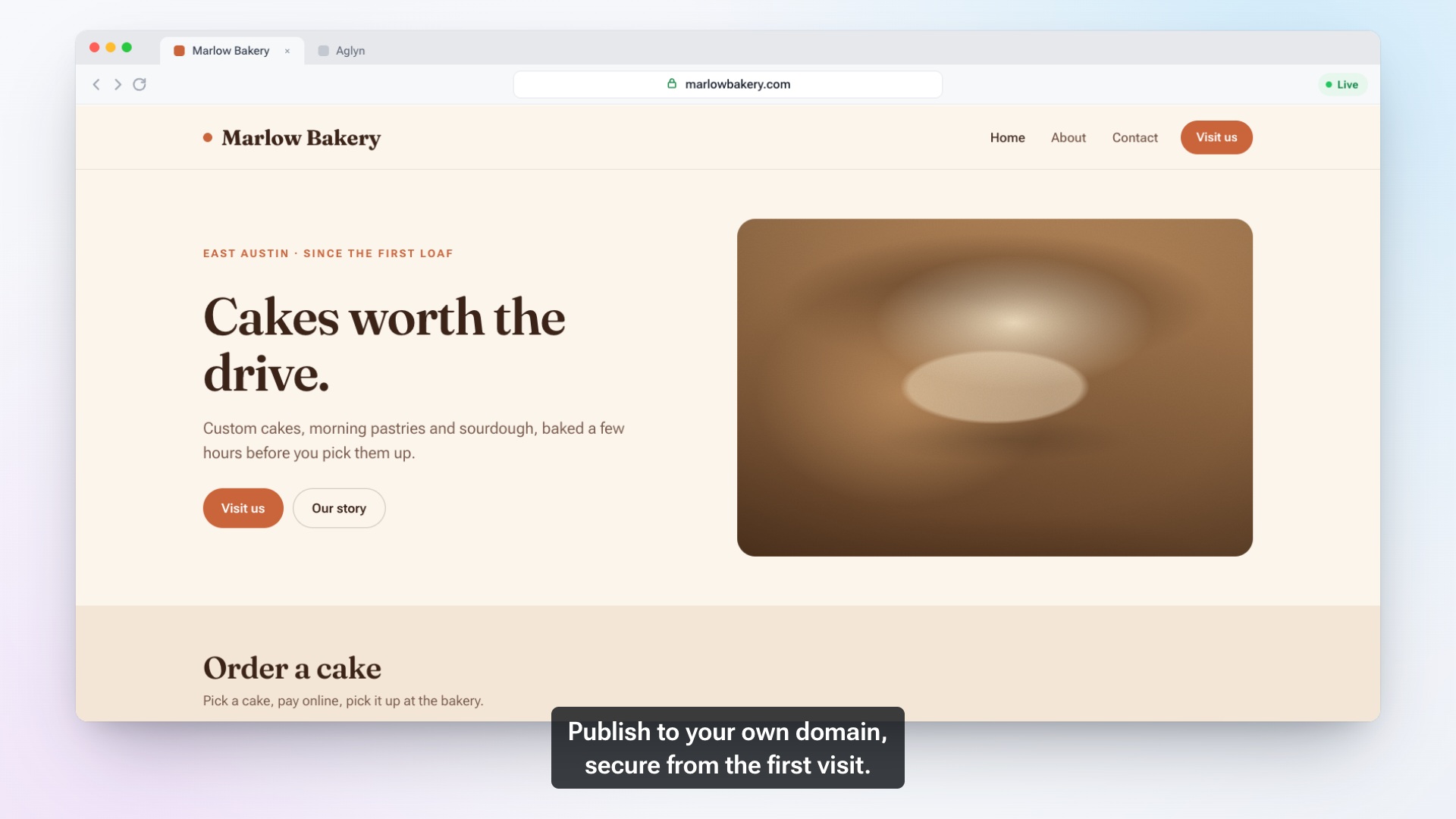
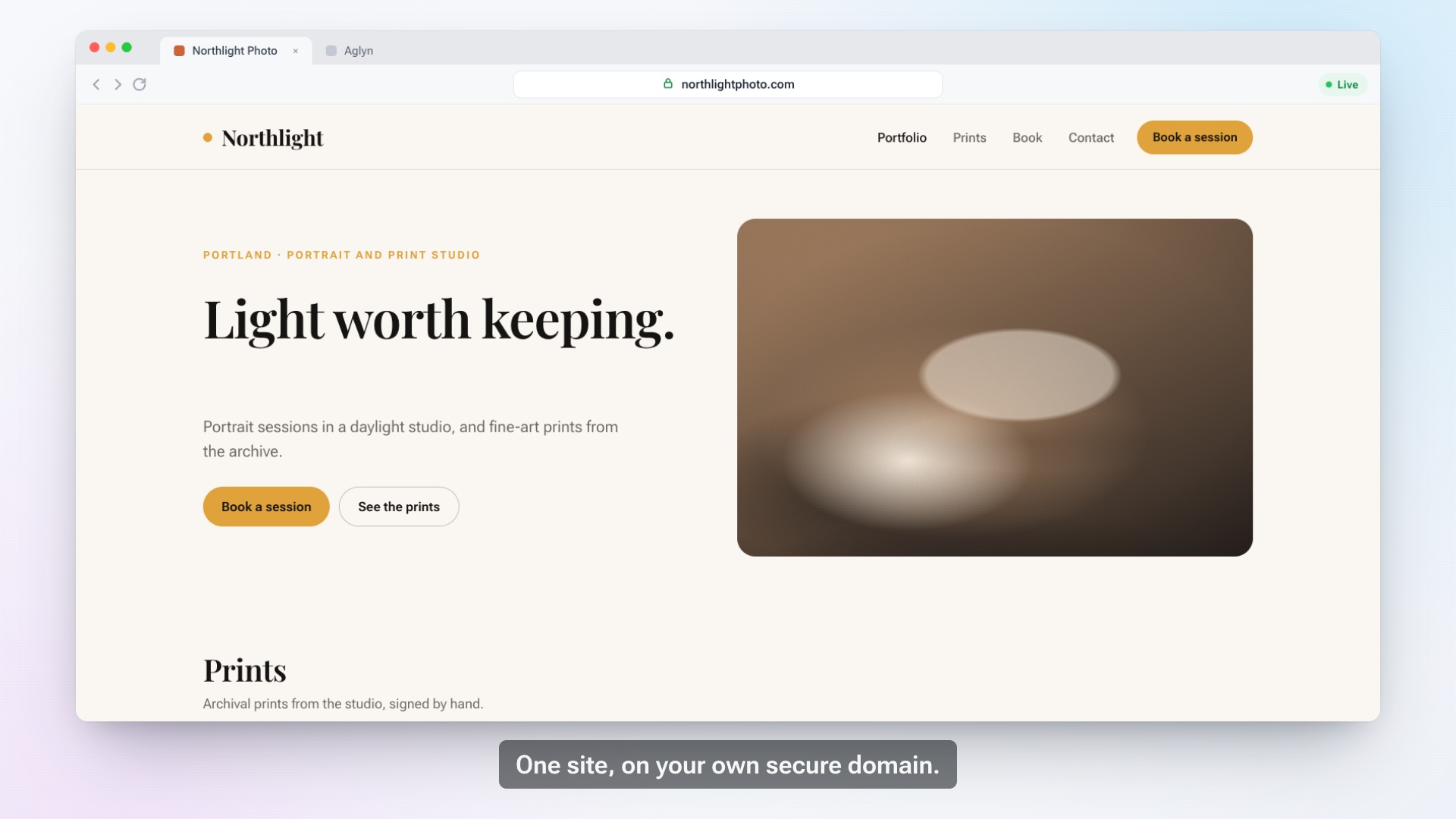
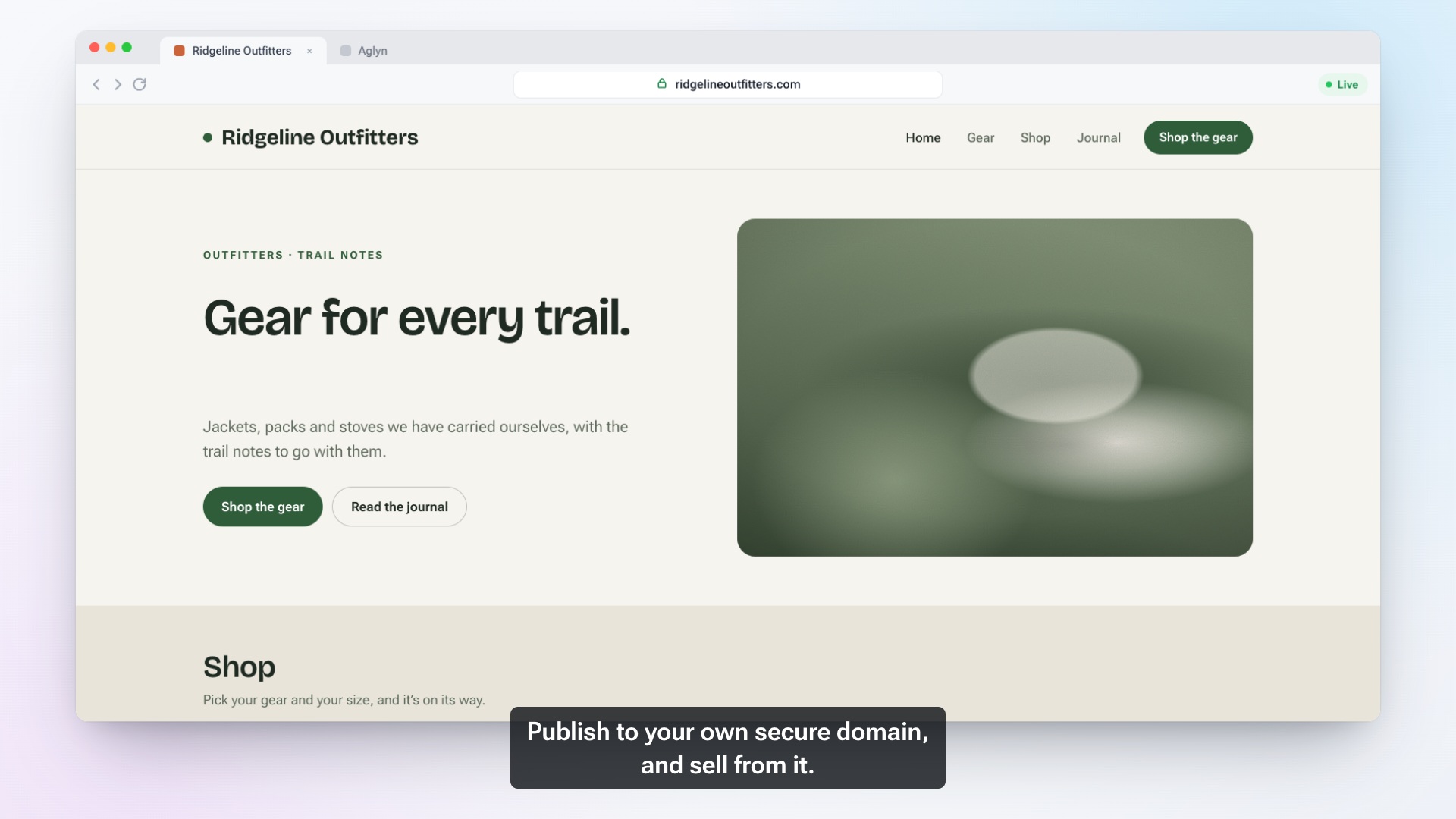
For a service business, a website has one main job: fill the calendar. The film above follows a studio's first booking. This guide covers how to set up a booking site that does that job well.
What a booking website actually needs
Strip away the extras and a booking site needs six things:
- Services. What can be booked, how long it takes, and what it costs.
- Availability. The weekly hours you take appointments.
- A way to book on the page. Visitors pick a service, a day and a time without calling you.
- A confirmation. On the page right away, and by email so the customer has it later.
- A reminder. A short email before the appointment cuts down on no-shows.
- One place for you to see what's coming up. Not a spreadsheet, and not your inbox.
If you charge at the time of booking, add a seventh: a secure way to take payment. Everything else, from a gallery to a blog, is optional.
Start from one sentence
Describe the business the way a customer would search for it: the kind of service, the city and what people book. "A yoga studio in Denver that books drop-in and beginner classes" works well. "Wellness" does not.
In Aglyn, Start this site with AI turns that sentence into a proposed plan: the pages, the header and footer, a contact form and a palette. You review it, confirm it, and the pages arrive as drafts to edit.
The plan does not create your services or your schedule. Those depend on facts only you know, like your hours and prices, so you add them yourself in the next step.
Set up services and availability
Bookings are part of Aglyn's paid plans. Each service gets a name, a duration and a price.
A few choices make a real difference:
- Name services the way customers say them. "60-minute deep tissue massage" beats "Signature Session." The name appears in the booking widget and in every confirmation email.
- Decide how the price shows. A service can show its price, or a label instead: Price varies, Free estimate or Contact for price. A labeled service books with no charge, which suits estimate visits and consultations.
- Ask only for what you need. Every booking asks for a name and an email. A service can also ask for a phone number and an address, either optional or required. Use the address for jobs done on site.
- Set how far ahead people can book. By default visitors can book up to 60 days out, and you can change that.
For paid services, connect your payment account first. Until it's connected, a paid service can't be booked, and free and labeled services are unaffected.
Where the schedule goes on the page
The booking widget is an element you place on any page. Where you place it matters:
- On the home page, near the top, if booking is the main thing visitors come for. Don't make them scroll past three sections to find it.
- On its own page, linked from the main navigation as "Book," so it's one tap from anywhere on the site.
- On each service's page, so someone reading about a service can book it without hunting.
The widget shows two weeks of open days at a time, with the times for the chosen day grouped into morning, afternoon and evening. Check it in the editor's phone preview, since that's where most people will use it.
Each service also has its own booking link with that service already selected. It's useful in emails, on social profiles and anywhere else you'd otherwise write "call to book."
What the customer receives
From the customer's side, booking takes one screen and leaves a clear trail:
- On the page: "Booking confirmed — check your email for the details."
- By email: a confirmation with the service name in the subject line.
- About a day before: a reminder email naming the service and the time.
For a paid service, payment happens securely during booking, and the time slot is held while they pay so nobody else can take it.
What the owner receives
Your side matters just as much, because a booking you don't see is a booking you miss:
- A notification in the Aglyn console, "New booking on" followed by your site's name, and by email if you have email notifications on.
- The booking in your Upcoming bookings list, with any phone number or address the customer gave.
- A contact record for the customer, created automatically and marked as coming from a booking, with the appointment logged on their timeline.
Plans change, too. Canceling a booking reopens the slot, and for a paid booking the button reads Cancel and refund and returns the payment.
Before you go live
Run through this short list:
- Book a test appointment yourself, read both emails, then cancel it.
- Check every service's duration and price one more time.
- Read the booking page on your phone.
- Connect your own domain. The security certificate is set up automatically.
There's more on running a service business site on the small business page.
FAQ
Can customers pay when they book?
Yes. Once your payment account is connected, a priced service is paid during booking. Services shown as "Free estimate," "Price varies" or "Contact for price" book with no charge.
Do customers get reminders?
Yes. Every confirmed booking with an email address gets one reminder about 24 hours before it starts.
Does the AI set up my schedule?
No. It plans and drafts your pages. You add services and availability, which keeps your hours and prices accurate.
Where do my customers' details go?
Into your contacts, alongside anyone who ordered or filled in a form, so one person is one record. See the CRM, how to create a website and pricing.
Share this article
We're building the open web platform. Follow along as we ship — and tell us what you need.